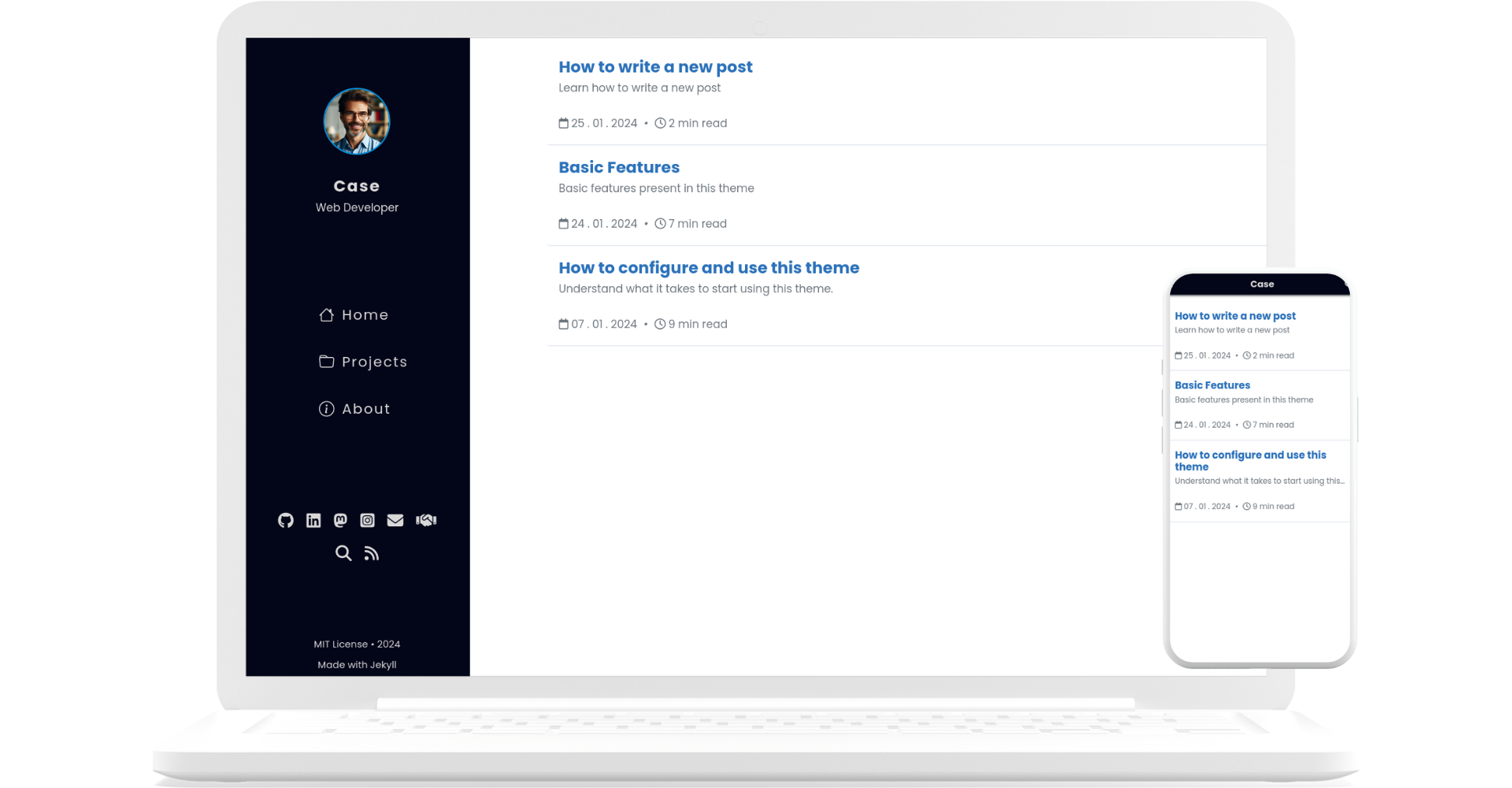
<?xml version="1.0" encoding="utf-8"?><feed xmlns="http://www.w3.org/2005/Atom" xml:lang="pt-BR"><generator uri="https://jekyllrb.com/" version="4.3.3">Jekyll</generator><link href="/jekyll-theme-case/feed.xml" rel="self" type="application/atom+xml"/><link href="/jekyll-theme-case/" rel="alternate" type="text/html" hreflang="pt-BR"/><updated>2026-01-09T17:26:40-03:00</updated><id>/jekyll-theme-case/feed.xml</id><title type="html">Case</title><subtitle>A Jekyll theme with sidebar for personal website and blog.</subtitle><entry><title type="html">How to write a new post</title><link href="/jekyll-theme-case/write-new-post" rel="alternate" type="text/html" title="How to write a new post"/><published>2024-01-25T00:20:37-03:00</published><updated>2024-01-25T00:20:37-03:00</updated><id>/jekyll-theme-case/write-new-post</id><content type="html" xml:base="/jekyll-theme-case/write-new-post"><![CDATA[<h2 id="creating-a-new-post">Creating a new post</h2> <p>To create a new post you need to create a new file within the <code class="language-console highlighter-rouge"><span class="go">_posts</span></code> folder.</p> <p>The file needs to be named as follows: <code class="language-console highlighter-rouge"><span class="go">YYYY-MM-DD-title-of-post.md</span></code>. The extension can be <code class="language-console highlighter-rouge"><span class="go">md</span></code> or <code class="language-console highlighter-rouge"><span class="go">markdown</span></code>.</p> <p>The date defined in the file name will automatically be used as the post’s publication date and the title defined will be used as the post’s title and url, therefore, do not use accents in the file name.</p> <p>To change this default information, use Front Matter.</p> <h2 id="frontmatter">FrontMatter</h2> <p>In all new posts it is necessary to add Front Matter at the beginning of the file. It will override any previously set default value.</p> <div class="language-yaml highlighter-rouge"><div class="highlight"><pre class="highlight"><code><span class="nn">---</span>
<span class="na">title</span><span class="pi">:</span> <span class="s">Post Title</span>
<span class="na">description</span><span class="pi">:</span> <span class="s">Description of the post</span>
<span class="na">date</span><span class="pi">:</span> <span class="s">YYYY-MM-DD HH:MM:SS +/-TTTT</span>
<span class="na">category</span><span class="pi">:</span> <span class="s">category</span>
<span class="na">tags</span><span class="pi">:</span> <span class="s">tag</span>
<span class="nn">---</span>
</code></pre></div></div> <h3 id="standard-layout">Standard Layout</h3> <p>In this theme, the post layout was set to <code class="language-console highlighter-rouge"><span class="go">post</span></code> by default, so there is no need to add the <em>layout</em> variable in the Front Matter block.</p> <h3 id="date-and-time-zone">Date and Time Zone</h3> <p>To precisely define the time at which a post was published, it is recommended to define the <em>date</em> variable with date, time and time zone.</p> <h3 id="categories-and-tags">Categories and Tags</h3> <p>Categories and tags serve to separate subjects by specific topics. They have specific pages.</p> <p>The categories and tags page can be accessed through the following urls, respectively:</p> <p>https://yourdomain/categories</p> <p>https://yourdomain/tags</p> <h2 id="post-banner">Post banner</h2> <p>If you want a banner to be displayed at the beginning of the post, simply add the variable <em>image</em> and its attributes <em>path</em>, <em>alt</em> and <em>caption</em>.</p> <h3 id="example-of-front-matter-with-image">Example of Front Matter with Image</h3> <div class="language-yaml highlighter-rouge"><div class="highlight"><pre class="highlight"><code><span class="nn">---</span>
<span class="na">title</span><span class="pi">:</span> <span class="s">Post Title</span>
<span class="na">description</span><span class="pi">:</span> <span class="s">Description of the post</span>
<span class="na">date</span><span class="pi">:</span> <span class="s">YYYY-MM-DD HH:MM:SS +/-TTTT</span>
<span class="na">image</span><span class="pi">:</span>
   <span class="na">path</span><span class="pi">:</span> <span class="s2">"</span><span class="s">path/to/banner/post"</span>
   <span class="na">alt</span><span class="pi">:</span> <span class="s2">"</span><span class="s">Alt</span><span class="nv"> </span><span class="s">text</span><span class="nv"> </span><span class="s">for</span><span class="nv"> </span><span class="s">post</span><span class="nv"> </span><span class="s">banner"</span>
   <span class="na">caption</span><span class="pi">:</span> <span class="s2">"</span><span class="s">Caption</span><span class="nv"> </span><span class="s">for</span><span class="nv"> </span><span class="s">the</span><span class="nv"> </span><span class="s">post</span><span class="nv"> </span><span class="s">banner"</span>
<span class="na">category</span><span class="pi">:</span> <span class="s">category</span>
<span class="na">tags</span><span class="pi">:</span> <span class="s">tag</span>
<span class="nn">---</span>
</code></pre></div></div>]]></content><author><name></name></author><category term="tutorial"/><category term="markdown"/><category term="jekyll"/><summary type="html"><![CDATA[Learn how to write a new post]]></summary></entry><entry><title type="html">Basic Features</title><link href="/jekyll-theme-case/basic-tutorial" rel="alternate" type="text/html" title="Basic Features"/><published>2024-01-24T13:54:37-03:00</published><updated>2024-01-24T13:54:37-03:00</updated><id>/jekyll-theme-case/basic-tutorial</id><content type="html" xml:base="/jekyll-theme-case/basic-tutorial"><![CDATA[<p>The theme is designed for people who want to write using the Markdown markup language.</p> <p>Below is some information, but you can refer to the <a href="https://www.markdownguide.org/" target="_blank">Markdown Guide</a> for a deeper understanding.</p> <h2 id="titles">Titles</h2> <h3 id="syntax">Syntax:</h3> <div class="language-markdown highlighter-rouge"><div class="highlight"><pre class="highlight"><code><span class="gh"># Title 1</span>

<span class="gu">## Title 2</span>

<span class="gu">### Title 3</span>

<span class="gu">#### Title 4</span>

<span class="gu">##### Title 5</span>

<span class="gu">###### Title 6</span>
</code></pre></div></div> <h4 id="exhibition">Exhibition:</h4> <h1 id="title-1">Title 1</h1> <h2 id="title-2">Title 2</h2> <h3 id="title-3">Title 3</h3> <h4 id="title-4">Title 4</h4> <h5 id="title-5">Title 5</h5> <h6 id="title-6">Title 6</h6> <h2 id="text-styles">Text styles</h2> <h3 id="syntax-1">Syntax:</h3> <div class="language-markdown highlighter-rouge"><div class="highlight"><pre class="highlight"><code><span class="gs">**Bold**</span>
<span class="ge">_Italic_</span>
~~Scratched~~
</code></pre></div></div> <h4 id="exhibition-1">Exhibition:</h4> <p><strong>Bold</strong></p> <p><em>Italic</em></p> <p><del>Scratched</del></p> <h2 id="check-list">Check list</h2> <h3 id="syntax-2">Syntax:</h3> <div class="language-markdown highlighter-rouge"><div class="highlight"><pre class="highlight"><code><span class="p">-</span> [ ] Task 1
<span class="p">-</span> [ ] Task 2
<span class="p">-</span> [x] Task 3
</code></pre></div></div> <h4 id="exhibition-2">Exhibition:</h4> <ul class="task-list"> <li class="task-list-item"><input type="checkbox" class="task-list-item-checkbox" disabled="disabled"/>Task 1</li> <li class="task-list-item"><input type="checkbox" class="task-list-item-checkbox" disabled="disabled"/>Task 2</li> <li class="task-list-item"><input type="checkbox" class="task-list-item-checkbox" disabled="disabled" checked="checked"/>Task 3</li> </ul> <h2 id="lists">Lists</h2> <h3 id="syntax-3">Syntax:</h3> <div class="language-markdown highlighter-rouge"><div class="highlight"><pre class="highlight"><code><span class="p">1.</span> Item 1
<span class="p">2.</span> Item 2
<span class="p">
-</span> Item
<span class="p">   -</span> Subitem
</code></pre></div></div> <h4 id="exhibition-3">Exhibition:</h4> <ol> <li>Item 1</li> <li>Item 2</li> </ol> <ul> <li>Item <ul> <li>Subitem</li> </ul> </li> </ul> <h2 id="links">Links</h2> <h3 id="syntax-4">Syntax:</h3> <div class="language-markdown highlighter-rouge"><div class="highlight"><pre class="highlight"><code><span class="p">[</span><span class="nv">Link Text</span><span class="p">](</span><span class="sx">https://myUrl.com</span><span class="p">)</span>
</code></pre></div></div> <h4 id="exhibition-4">Exhibition:</h4> <p><a href="https://myUrl.com">Link Text</a></p> <h2 id="tables">Tables</h2> <p>To add captions to your tables, use the following markup just below the text that will serve as the caption for the table:</p> <div class="language-bash highlighter-rouge"><div class="highlight"><pre class="highlight"><code><span class="o">{</span>: .caption-table<span class="o">}</span>
</code></pre></div></div> <div class="language-markdown highlighter-rouge"><div class="highlight"><pre class="highlight"><code>| Header 1 | Header 2 | Header 3 | Header 4 |
| :------: | :------: | :------: | :------: |
| Col1 | Col2 | Col2 | Col4 |
| L02 | L02 | L02 | L02 |

Table Legend
{: .caption-table}
</code></pre></div></div> <h4 id="exhibition-5">Exhibition</h4> <table> <thead> <tr> <th style="text-align: center">Header 1</th> <th style="text-align: center">Header 2</th> <th style="text-align: center">Header 3</th> <th style="text-align: center">Header 4</th> </tr> </thead> <tbody> <tr> <td style="text-align: center">Col1</td> <td style="text-align: center">Col2</td> <td style="text-align: center">Col2</td> <td style="text-align: center">Col4</td> </tr> <tr> <td style="text-align: center">L02</td> <td style="text-align: center">L02</td> <td style="text-align: center">L02</td> <td style="text-align: center">L02</td> </tr> </tbody> </table> <p class="caption-table">Table Legend</p> <h2 id="block-quote">Block Quote</h2> <p>For block quotes just start the text with <code class="language-console highlighter-rouge"><span class="gp">&gt;</span></code>.</p> <blockquote> <p>Aliquid officiis incidunt eaque, necessitatibus explicabo velit veritatis fugit quaerat, corporis optio voluptates unde ipsum, expedita sunt quae.</p> </blockquote> <h2 id="bubbles">Bubbles</h2> <p>Bubbles are a way of emphasizing information, there are three types: <em>Tip</em>, <em>Observation</em> and <em>Warning</em>.</p> <div class="language-markdown highlighter-rouge"><div class="highlight"><pre class="highlight"><code>Information that can help make things easier.
{: .bubble-tip}

Information that may be useful and is important to know.
{: .bubble-note}

Information that needs attention to avoid a problem.
{: .bubble-warning}
</code></pre></div></div> <p>To change bubble titles go to <code class="language-console highlighter-rouge"><span class="go">assets/css/bubbles.css</span></code>.</p> <h4 id="exhibition-6">Exhibition</h4> <p class="bubble-tip">Information that can help make things easier.</p> <p class="bubble-note">Information that may be useful and is important to know.</p> <p class="bubble-warning">Information that needs attention to avoid a problem.</p> <h2 id="footnote">Footnote</h2> <p>Create footnotes using the following syntax in square brackets:</p> <div class="language-markdown highlighter-rouge"><div class="highlight"><pre class="highlight"><code><span class="c">&lt;!-- quotes --&gt;</span>

Click on the number to find the footnote[^1] and here is another footnote[^2].

<span class="c">&lt;!-- references --&gt;</span>

<span class="p">[</span><span class="ss">^1</span><span class="p">]:</span> <span class="sx">My</span> first reference.
<span class="p">[</span><span class="ss">^2</span><span class="p">]:</span> <span class="sx">My</span> second reference.
</code></pre></div></div> <h4 id="exhibition-7">Exhibition</h4> <p>Click on the number to find the footnote<sup id="fnref:1" role="doc-noteref"><a href="#fn:1" class="footnote" rel="footnote">1</a></sup> and here is another footnote<sup id="fnref:2" role="doc-noteref"><a href="#fn:2" class="footnote" rel="footnote">2</a></sup>.</p> <p class="bubble-note">Regardless of where the footnote is placed, the rendering will always be at the bottom of the page.</p> <h2 id="codes">Codes</h2> <h3 id="inline-code">Inline code:</h3> <p>To display code inline, within a paragraph, simply surround the text with backticks (``)</p> <div class="language-markdown highlighter-rouge"><div class="highlight"><pre class="highlight"><code>The text with <span class="sb">`inline code`</span> block looks like this.
</code></pre></div></div> <h4 id="inline-display">Inline display:</h4> <p>The text with <code class="language-console highlighter-rouge"><span class="go">inline code</span></code> block looks like this.</p> <h3 id="code-block">Code block:</h3> <p>To write a block of code, surround the content with three backticks, at the beginning and at the end.</p> <p>By specifying the programming language at the beginning of the block after the three backticks the code will be styled.</p> <div class="language-markdown highlighter-rouge"><div class="highlight"><pre class="highlight"><code><span class="p">```</span><span class="nl">python
</span><span class="n">num</span> <span class="o">=</span> <span class="nf">int</span><span class="p">(</span><span class="nf">input</span><span class="p">(</span><span class="sh">'</span><span class="s">Enter a value: </span><span class="sh">'</span><span class="p">))</span>
<span class="k">if</span> <span class="n">num</span> <span class="o">%</span> <span class="mi">2</span> <span class="o">==</span> <span class="mi">0</span><span class="p">:</span>
<span class="nf">print</span><span class="p">(</span><span class="sa">f</span><span class="sh">'</span><span class="s">0 value </span><span class="si">{</span><span class="n">num</span><span class="si">}</span><span class="s"> is EVEN</span><span class="sh">'</span><span class="p">)</span>
<span class="p">```</span>
</code></pre></div></div> <h4 id="block-display">Block display:</h4> <div class="language-python highlighter-rouge"><div class="highlight"><pre class="highlight"><code><span class="n">num</span> <span class="o">=</span> <span class="nf">int</span><span class="p">(</span><span class="nf">input</span><span class="p">(</span><span class="sh">'</span><span class="s">Enter a value: </span><span class="sh">'</span><span class="p">))</span>
<span class="k">if</span> <span class="n">num</span> <span class="o">%</span> <span class="mi">2</span> <span class="o">==</span> <span class="mi">0</span><span class="p">:</span>
<span class="nf">print</span><span class="p">(</span><span class="sa">f</span><span class="sh">'</span><span class="s">0 value </span><span class="si">{</span><span class="n">num</span><span class="si">}</span><span class="s"> is EVEN</span><span class="sh">'</span><span class="p">)</span>
</code></pre></div></div> <h2 id="image">Image</h2> <p>To add images you have two options.</p> <p>Images without captions can be added with basic Markdown syntax:</p> <div class="language-markdown highlighter-rouge"><div class="highlight"><pre class="highlight"><code><span class="p">![</span><span class="nv">Alt text</span><span class="p">](</span><span class="sx">path/for/image</span><span class="p">)</span>
</code></pre></div></div> <h4 id="exhibition-8">Exhibition</h4> <p><img src="assets/img/mockup.png" alt="Image"/></p> <p>To add <strong>captions</strong> to your images use the include <code class="language-console highlighter-rouge"><span class="go">figure.html</span></code> as follows:</p> <div class="language-liquid highlighter-rouge"><div class="highlight"><pre class="highlight"><code><span class="cp">{%</span><span class="w"> </span><span class="nt">include</span><span class="w"> </span>figure.html<span class="w"> </span><span class="na">url</span><span class="o">=</span><span class="s2">"path/for/image"</span><span class="w"> </span><span class="na">alt</span><span class="o">=</span><span class="s2">"Alt text"</span><span class="w"> </span><span class="na">caption</span><span class="o">=</span><span class="s2">"Caption"</span><span class="w"> </span><span class="cp">%}</span>
</code></pre></div></div> <h4 id="exhibition-9">Exhibition</h4> <figure> <img src="/jekyll-theme-case/assets/img/mockup.png" alt="Image with include" loading="lazy"/> <figcaption>Caption</figcaption> </figure> <h2 id="youtube-videos">YouTube Videos</h2> <p>To add YouTube videos use the include <code class="language-console highlighter-rouge"><span class="go">youtube.html</span></code> as follows:</p> <div class="language-liquid highlighter-rouge"><div class="highlight"><pre class="highlight"><code><span class="cp">{%</span><span class="w"> </span><span class="nt">include</span><span class="w"> </span>youtube.html<span class="w"> </span><span class="na">id</span><span class="o">=</span><span class="s1">'FgdBfT-NMF0'</span><span class="w"> </span><span class="cp">%}</span>
</code></pre></div></div> <p>Replace the <code class="language-console highlighter-rouge"><span class="go">id</span></code> value with the id of the video you want to embed.</p> <h4 id="exhibition-10">Exhibition</h4> <iframe class="embed-youtube-video" loading="lazy" src="https://www.youtube.com/embed/FgdBfT-NMF0" title="YouTube video player" frameborder="0" allow="accelerometer; autoplay; clipboard-write; encrypted-media; gyroscope; picture-in-picture" allowfullscreen=""></iframe> <h2 id="mermaid-diagrams">Mermaid Diagrams</h2> <p>It is possible to create diagrams and flowcharts easily and intuitively using the mermaid syntax. You can visit <a href="https://mermaid.js.org/intro/syntax-reference.html" target="_blank">official website</a> to know the different ways of creating them.</p> <div class="language-console highlighter-rouge"><div class="highlight"><pre class="highlight"><code><span class="go">```mermaid
flowchart LR
</span><span class="gp">  A[Start] --&gt;</span><span class="w"> </span>B[Process 1]
<span class="gp">  B --&gt;</span><span class="w"> </span>C[Process 2]
<span class="gp">  C --&gt;</span><span class="w"> </span>D[Process 3]
<span class="gp">  D --&gt;</span><span class="w"> </span>E[End]
<span class="go">```
</span></code></pre></div></div> <h4 id="exhibition-11">Exhibition</h4> <pre><code class="language-mermaid">flowchart LR
  A[Start] --&gt; B[Process 1]
  B --&gt; C[Process 2]
  C --&gt; D[Process 3]
  D --&gt; E[End]
</code></pre> <h2 id="pinned-post">Pinned Post</h2> <p>It is possible to pin one or more posts to the main page. For this, add the tag “pinned” in the Front Matter of the post. For unpin, remove the tag.</p> <div class="language-console highlighter-rouge"><div class="highlight"><pre class="highlight"><code><span class="go">---
title: How to configure and use this theme
description: Understand what it takes to start using this theme.
date: 2024-01-07 19:48:47 -0300
category: tutorial
tags:
  - jekyll
  - github
  - pinned
---
</span></code></pre></div></div> <h2 id="references">References</h2> <div class="footnotes" role="doc-endnotes"> <ol> <li id="fn:1" role="doc-endnote"> <p>My first reference. <a href="#fnref:1" class="reversefootnote" role="doc-backlink">&#8617;</a></p> </li> <li id="fn:2" role="doc-endnote"> <p>My second reference. <a href="#fnref:2" class="reversefootnote" role="doc-backlink">&#8617;</a></p> </li> </ol> </div>]]></content><author><name></name></author><category term="tutorial"/><category term="markdown"/><summary type="html"><![CDATA[Basic features present in this theme]]></summary><media:thumbnail xmlns:media="http://search.yahoo.com/mrss/" url="/jekyll-theme-case/assets/img/mockup.png"/><media:content medium="image" url="/jekyll-theme-case/assets/img/mockup.png" xmlns:media="http://search.yahoo.com/mrss/"/></entry><entry><title type="html">How to configure and use this theme</title><link href="/jekyll-theme-case/config-theme" rel="alternate" type="text/html" title="How to configure and use this theme"/><published>2024-01-07T19:48:47-03:00</published><updated>2024-01-07T19:48:47-03:00</updated><id>/jekyll-theme-case/config-theme</id><content type="html" xml:base="/jekyll-theme-case/config-theme"><![CDATA[<h2 id="prerequisites">Prerequisites</h2> <p>This is a theme built using the Jekyll static site generator, which is developed using Ruby, so you will need to have Ruby and some other dependencies installed. Visit the <a href="https://jekyllrb.com/docs/installation/" target="_blank">official Jekyll website</a> and install the necessary dependencies.</p> <h2 id="theme-installation">Theme installation</h2> <p>There are three ways to obtain this theme:</p> <ol> <li>Repository template (most recommended)</li> <li>Uploading files to a new repository (more work)</li> <li>Fork the repository (least recommended)</li> </ol> <h3 id="1-using-the-template-repository-available-on-github">1. Using the template repository available on GitHub</h3> <p>Log in to your GitHub account, go to this <a href="https://github.com/elainefs/jekyll-theme-case" target="_blank">theme’s repository</a> and click <code class="language-console highlighter-rouge"><span class="go">Use this template</span></code>. A new page will open to create a new repository. Set the name of this repository to <code class="language-console highlighter-rouge"><span class="go">USERNAME.github.io</span></code>, where <code class="language-console highlighter-rouge"><span class="go">USERNAME</span></code> is your GitHub username.</p> <p>After saving the new repository, GitHub will automatically try to publish the site and you will receive a build error. This happens because by default GitHub will try to publish the site using the standard <em>pages-build-deployment</em> workflow with a branch as the source.</p> <p>To resolve this problem, follow these steps:</p> <ol> <li>Go to your repository and, in the top bar, click on Settings</li> <li>Then in the sidebar, click on Pages</li> <li>In <strong>Source</strong> select <em>GitHub Actions</em></li> <li>In the top bar, click on Actions</li> <li>In the sidebar click on <em>Deploy jekyll site to Pages</em></li> <li>Click the gray <em>Run workflow</em> button</li> <li>Make sure the branch you select is <code class="language-console highlighter-rouge"><span class="go">gh-pages</span></code></li> <li>Click the green <em>Run workflow</em> button to run</li> </ol> <p>After that, your website will be live at the url <code class="language-console highlighter-rouge"><span class="go">https://USERNAME.github.io</span></code></p> <p class="bubble-note">You may continue to see an <code class="language-console highlighter-rouge"><span class="go">Initial commit</span></code> with a red X as if there was still an error, but when you try to access your site it will be working normally. This should be resolved after the next commit.</p> <h3 id="2-uploading-files-to-a-new-repository">2. Uploading files to a new repository</h3> <p>Log in to your GitHub account, go to this <a href="https://github.com/elainefs/jekyll-theme-case" target="_blank">theme’s repository</a>, click <code class="language-console highlighter-rouge"><span class="go">Releases</span></code> in the sidebar, and download the files for this theme in the last version to have the theme with the most up-to-date features possible. Create a new empty repository with the name <code class="language-console highlighter-rouge"><span class="go">USERNAME.github.io</span></code>, just select the “Public” option.</p> <p>There are several ways to upload theme files to your new repository, the simplest is:</p> <ol> <li>Extract the files from the compressed archive you downloaded</li> <li>On the repository’s home screen, under “Quick setup…” click on the “uploading an existing file” option</li> <li>On the next screen, drag the extracted files to the indicated location or click on “Choose your files”</li> <li>After all files have been uploaded, click the Commit Changes button</li> <li>After that, in the top bar, click on Settings</li> <li>In <em>Default branch</em>, in the General tab, change the branch name from <code class="language-console highlighter-rouge"><span class="go">main</span></code> to <code class="language-console highlighter-rouge"><span class="go">gh-pages</span></code></li> <li>In the Settings sidebar, click Pages</li> <li>Under <em>Sources</em> select <em>GitHub Actions</em></li> <li>In the top bar, click on Actions</li> <li>In the sidebar click on the “New workflow” button</li> <li>Search for Jekyll</li> <li>Click Configure, do not change anything in the file, click Commit changes</li> </ol> <p>After that, your website will be live at the url <code class="language-console highlighter-rouge"><span class="go">https://USERNAME.github.io</span></code></p> <p class="bubble-note">Jekyll using Docker image and GitHub Pages Jekyll should not be used, use workflow named as Jekyll only.</p> <h3 id="3-creating-a-fork-of-the-repository">3. Creating a fork of the repository</h3> <p>Log in to your GitHub account, go to this <a href="https://github.com/elainefs/jekyll-theme-case" target="_blank">theme’s repository</a> and click <code class="language-console highlighter-rouge"><span class="go">Fork</span></code>. A new page will open to create a new fork. Set the name of this repository to <code class="language-console highlighter-rouge"><span class="go">USERNAME.github.io</span></code>. Check the option “Copy the <code class="language-console highlighter-rouge"><span class="go">gh-pages</span></code> branch only” and click Create fork.</p> <ol> <li>After that, in the top bar, click on Settings</li> <li>In General, just below Repository Name, uncheck the Template repository option</li> <li>In the sidebar, click Pages</li> <li>In <em>Sources</em> select <em>GitHub Actions</em></li> <li>In the top bar, click on Actions</li> <li>A warning message will appear that the workflows are disabled, click on the green button to enable them</li> <li>In the sidebar click on <em>Deploy jekyll site to Pages</em></li> <li>Click the gray <em>Run workflow</em> button</li> <li>Make sure the branch you select is <code class="language-console highlighter-rouge"><span class="go">gh-pages</span></code></li> <li>Click the green <em>Run workflow</em> button to run</li> </ol> <p>After that, your website will be live at the url <code class="language-console highlighter-rouge"><span class="go">https://USERNAME.github.io</span></code></p> <p class="bubble-note">Forking the repository is most recommended when you want to make contributions to the theme.</p> <h2 id="setting-up-your-new-website">Setting up your new website</h2> <p>Although it is possible to manipulate all files from the GitHub repository itself, it is more interesting to do this from your local machine.</p> <p>To do this, clone your repository to your local machine.</p> <h3 id="installing-dependencies">Installing dependencies</h3> <p>After cloning your repository, run the following command to install the dependencies:</p> <div class="language-bash highlighter-rouge"><div class="highlight"><pre class="highlight"><code>bundle <span class="nb">install</span>
</code></pre></div></div> <h3 id="customizing-your-new-site">Customizing your new site</h3> <p>After installing the dependencies, change the variables present in the <code class="language-console highlighter-rouge"><span class="go">_config.yml</span></code> file, some examples:</p> <ul> <li>url</li> <li>lang</li> <li>timezone</li> <li>title</li> <li>tagline</li> <li>description</li> <li>avatar</li> </ul> <p>There are other variables that can and should be changed.</p> <p class="bubble-note">Whenever changes to the <code class="language-console highlighter-rouge"><span class="go">_config.yml</span></code> file are made, the server needs to be restarted.</p> <h3 id="changing-favicon">Changing Favicon</h3> <p>To change the theme’s favicon, add the favicon files inside the <code class="language-console highlighter-rouge"><span class="go">assets/img/favicon</span></code> folder.</p> <p>The favicons for this theme were created through the website <a href="https://www.favicon-generator.org/" target="_blank">Favicon Generator</a>.</p> <h3 id="translating-template">Translating Template</h3> <p>Although this template was developed by a Brazilian, it is in English, and does not yet have the template’s automatic translation feature. You can translate page names and permalinks yourself, but be careful to do this everywhere equally so as not to break the theme.</p> <p class="bubble-warning"><em>Do not change the name of the files</em>, for example, if you want to translate the title of the page <code class="language-console highlighter-rouge"><span class="go">about.html</span></code>, do not change the file name to <code class="language-console highlighter-rouge"><span class="go">sobre.html</span></code>, or another language, change the Front Matter of that page.</p> <p>When changing the <code class="language-console highlighter-rouge"><span class="go">permalink</span></code> of a page, it is necessary to change this value in other parts of the site.</p> <p class="bubble-tip">On your local machine, use an IDE that has the search/replace feature for words in every document to avoid forgetting to change the values somewhere.</p> <h3 id="running-local-server">Running local server</h3> <p>Before sending your changes to the repository, it is important to check that everything is working. To do this, run the local server with the following command:</p> <div class="language-bash highlighter-rouge"><div class="highlight"><pre class="highlight"><code>bundle <span class="nb">exec </span>jekyll serve
</code></pre></div></div> <h2 id="hosting-on-github">Hosting on GitHub</h2> <p>Before uploading the files to GitHub, make sure you have changed the <code class="language-console highlighter-rouge"><span class="go">url</span></code> variable present in the <code class="language-console highlighter-rouge"><span class="go">_config.yml</span></code> file to the url of your repository (<code class="language-console highlighter-rouge"><span class="go">https://USERNAME.github.io</span></code>).</p> <p class="bubble-note">If you are installing this theme in a repository other than <code class="language-console highlighter-rouge"><span class="go">https://USERNAME.github.io</span></code>, change the <code class="language-console highlighter-rouge"><span class="go">baseurl</span></code> variable to the name of the repository in question preceded by a slash. Eg: <code class="language-console highlighter-rouge"><span class="go">/blog</span></code>.</p> <p class="bubble-warning">This theme only works with the default <code class="language-console highlighter-rouge"><span class="go">gh-pages</span></code> branch.</p> <p>To change your repository’s default branch:</p> <ol> <li>Go to your repository and click on Settings</li> <li>In General, Default branch change to <code class="language-console highlighter-rouge"><span class="go">gh-pages</span></code></li> </ol> <p>To change the default branch via the command line:</p> <p><code class="language-console highlighter-rouge"><span class="go">git branch -m main gh-pages</span></code></p> <p><code class="language-console highlighter-rouge"><span class="go">git fetch origin</span></code></p> <p><code class="language-console highlighter-rouge"><span class="go">git branch -u origin/gh-pages gh-pages</span></code></p> <p><code class="language-console highlighter-rouge"><span class="go">git remote set-head origin -a</span></code></p>]]></content><author><name></name></author><category term="tutorial"/><category term="jekyll"/><category term="github"/><category term="pinned"/><summary type="html"><![CDATA[Understand what it takes to start using this theme.]]></summary></entry></feed>